 Old Phone Cam
Camera offline or not connecting: how to fix it
Most “camera offline” problems come down to three things: the camera app was stopped by battery optimisation, the two phones aren’t on the same Wi-Fi, or the camera phone lost its connection. Check them in that order and the camera usually comes back within a minute.
▶ Get it on Google Play Free download · Android 8.0 or newer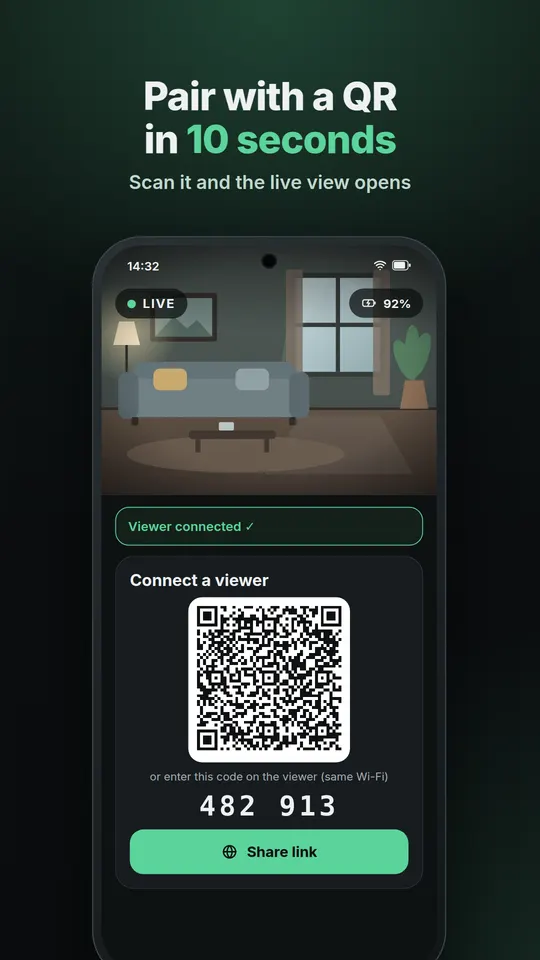
How to get an offline camera back online
- Look at the camera phoneIs the screen dimmed with “Camera is running · Tap to wake”, or did it return to the home screen or the “Camera stopped” screen? If it stopped, tap Start camera.
- Turn off battery optimisationIf you see “Battery optimisation is on: the camera may stop in the background”, tap it and choose Battery › Unrestricted. On Samsung: Settings › Apps › Security Camera › Battery › Unrestricted.
- Check the Wi-Fi networkWithout Premium, both phones must be on the same Wi-Fi. Make sure your viewer isn’t on mobile data or a guest network.
- Restart the Wi-Fi on the camera phoneToggle Wi-Fi off and on, or restart the phone and open the app again. It goes back to camera mode.
- Away from home: check internet and PremiumRemote viewing needs Premium and an internet connection on both phones. If it says “Remote server unreachable”, check your connection; local viewing still works at home.
- Pair again if neededIf the QR code or link has expired or access was removed, show the QR code on the camera phone and scan it again.
What the error messages mean
- Camera is offline. The viewer can’t find the camera. The camera phone is off, the app isn’t in Camera mode, or the phones are on different Wi-Fi networks without Premium.
- Can’t reach the camera. Both phones must be on the same Wi-Fi. You are trying to connect locally from a different network. Join the same Wi-Fi, or use Premium for remote access.
- No camera found on this Wi-Fi. The 6-digit code only works on the same network. Away from home, scan the QR code or open the link instead.
- This QR code / link has expired or was removed. Links last 7 days. Show the QR on the camera phone again.
- Wrong PIN / Too many attempts. Check the code on the camera phone; after several wrong tries, wait a minute.
- Remote access is off for this camera. You already have 10 remote cameras. It still works on home Wi-Fi; change which cameras are remote under Settings › Remote access cameras.
Wi-Fi settings that block cameras
When everything looks right and the viewer still can’t see the camera at home, the router is the usual suspect.
- Guest networks often stop devices from seeing each other. Put the camera phone and your viewer on the main network.
- Two bands or a mesh system: phones on the 2.4 GHz and 5 GHz versions of the same network normally see each other, but some routers separate them. If the camera is only found on one band, put both phones on the same band.
- Weak signal: a camera at the far end of the house can drop out. Move it closer to the router or add a mesh point.
- Router restarts: after a power cut, the old phone may reconnect slower than everything else. Give it a minute, or restart Wi-Fi on the phone.
If it keeps disconnecting
A camera that works for a few hours and then goes offline is almost always Android stopping the app to save battery. Samsung, Xiaomi and other brands are strict about apps running in the background. Set the app to Unrestricted battery use and keep the phone plugged in. The “Before you leave it” checklist on the pairing screen does this for you.
Heat is the other cause. A phone that gets too warm may slow down or close apps. If you see the “Warm” warning, take the case off and move it out of the sun. Our guide to running a phone 24/7 covers chargers, heat and old batteries in detail.
Remote sessions also end on purpose after a while (“Keep watching?”), so a closed remote view isn’t always a fault. Just tap Reconnect.
Quick fixes by symptom
| Symptom | Likely cause | Fix |
|---|---|---|
| Offline after a few hours | Battery optimisation | Battery › Unrestricted, keep it charging |
| Offline at home right after setup | Different Wi-Fi or guest network | Put both phones on the same main network |
| Code doesn’t work | Not on the same Wi-Fi | Scan the QR code instead |
| Works at home, not away | No Premium or no internet | Activate Premium, check camera phone’s internet |
| Link stopped working | Expired after 7 days or removed | Share a new link |
| Freezes or stutters | Weak Wi-Fi or a hot phone | Move closer to the router, cool the phone |
Frequently asked questions
Why does my home security camera app keep disconnecting?
Usually because Android puts the app to sleep to save battery. Set its battery use to Unrestricted, keep the phone charging and keep it cool.
Why is my camera offline when I’m away from home?
Watching away from home needs Premium and internet on the camera phone. Also open the camera once at home on the same Wi-Fi so remote access can turn on.
Can the camera work without internet?
Don’t count on it. The app is designed for a normal home Wi-Fi with internet. If you need a camera on a network with no internet at all, IP Webcam (as of November 2026) can stream inside your Wi-Fi to a browser or VLC without internet access.
The QR scanner won’t open. What now?
Pick the camera from the list of cameras on this network, enter the 6-digit code, or connect by address in the advanced option.
Does a restart fix most problems?
Often, yes. Restart the camera phone, open the app again, and make sure it is back in Camera mode with the LIVE indicator showing.
Your old Android phone can watch your home tonight: install the app, scan one QR code, plug it in.
▶ Get it on Google PlayLast updated: