 Old Phone Cam
How to view a phone camera remotely from another phone
Pair the two phones with the QR code, then turn on Premium to watch live and get motion alerts away from home. On the free plan, viewing works while both phones are on the same Wi-Fi. The video goes end-to-end encrypted and is never stored on a server.
▶ Get it on Google Play Free download · Android 8.0 or newer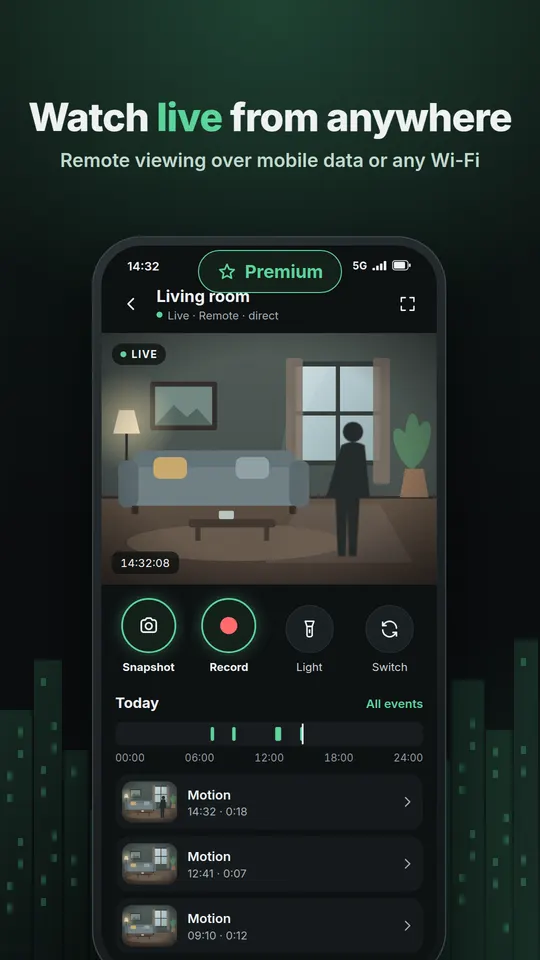
How to watch your camera phone from anywhere
- Set up the camera at homeInstall the app on the old phone, choose As a camera, plug it in and make sure it is on your home Wi-Fi.
- Pair your viewer by QR codeOn your own phone choose As a viewer and scan the QR code. QR pairing works on the same Wi-Fi and from anywhere.
- Get PremiumOpen Settings › Get Premium in the app. Choose monthly, yearly with a 3-day free trial, or lifetime.
- Check Remote accessIn Settings › Remote access cameras, make sure the camera is set to “Available away from home”. Up to 10 cameras can have remote access.
- Test it on mobile dataTurn off Wi-Fi on your viewer and open the camera. The label shows “Remote · direct” or “Remote · relayed” instead of “Local network”.
Free on home Wi-Fi, Premium for away from home
The free plan is built around your home network: when the viewer and the camera phone share a Wi-Fi network, you get live view and motion notifications at no cost. That covers glancing at the kids’ room from the kitchen, keeping an eye on the garage from the couch or watching the dog from the yard.
As soon as your viewer leaves the network, you need Premium. Premium unlocks remote live view and motion alerts for up to 10 cameras, browser viewing from anywhere, 30 days of event history and 10-second motion clips. If Premium lapses, the app tells you (“Your Premium has ended, so remote viewing is off”) and everything keeps working on home Wi-Fi.
Prefer to watch on a laptop or iPhone? Read watching in a browser.
What happens during a remote session
When you open a camera from outside, the phones connect either directly or through a relay, depending on your networks. Either way, the video is end-to-end encrypted and isn’t stored along the way. The live view shows which one you have: Remote · direct or Remote · relayed.
Remote sessions don’t run forever. After a while the app asks “Keep watching?”; tap Keep watching to continue or let it disconnect. Motion alerts keep arriving either way, and you can open the snapshot from the notification. If a session closes, tap Reconnect to start a new one.
Live video uses mobile data on your viewer and upload bandwidth on the camera’s home connection. There is no router setup (no port forwarding, DDNS or static IP), but both phones need internet. It is worth testing once from outside before you travel.
Who can watch, and how to remove access
There is no account, so access is tied to devices and links. You can see every paired phone and shared link on the camera phone under Settings › Connected devices. Tap Remove access and it stops working at once; open browsers are disconnected. Remove everyone (new code) resets the pairing code as well.
Share links expire after 7 days. That makes it easy to let a house sitter or family member check in for a week without permanent access. Watch only cameras in your own home, and let people living there know the camera is on. The camera phone always shows a notification and a LIVE indicator while it runs, and the camera screen shows how many viewers are watching.
If you have more than 10 cameras, choose which ones are available away from home in Settings › Remote access cameras. The others keep working on your home Wi-Fi.
What works where
| Same Wi-Fi (free) | Away from home (Premium) | |
|---|---|---|
| Live view in the app | Yes | Yes |
| Live view in a browser | Yes, with the code or link | Yes, with the share link |
| Motion alerts | Yes | Yes |
| Event history | 24 hours (30 days with Premium) | 30 days |
| Play 10-second clips | With Premium | Yes |
| Number of cameras | 1 free; unlimited with Premium | Up to 10 |
Frequently asked questions
How do I view my phone camera remotely on Android?
Pair the viewer phone with the camera phone by QR code, then activate Premium. You can then open the camera from anywhere with an internet connection.
Is there a free app to view a phone camera remotely?
Our app is free on the same Wi-Fi; watching from outside the home needs Premium. As of November 2026, AlfredCamera’s free plan includes live view and motion alerts, with an account.
Why does it say “To watch this camera away from home, open it once while both phones are on the same Wi-Fi”?
The camera hasn’t been reached from that viewer on your home network yet. Open it once at home and remote access turns on.
Does remote viewing use a lot of data?
Live video uses mobile data while you watch. Short check-ins and motion alerts use little; leaving live view open for a long time uses more, which is why the app asks “Keep watching?”.
Can someone else watch my camera?
Only devices you paired or people you sent a link to. You can see and remove all of them under Settings › Connected devices on the camera phone.
Your old Android phone can watch your home tonight: install the app, scan one QR code, plug it in.
▶ Get it on Google PlayLast updated: